1 准备工作

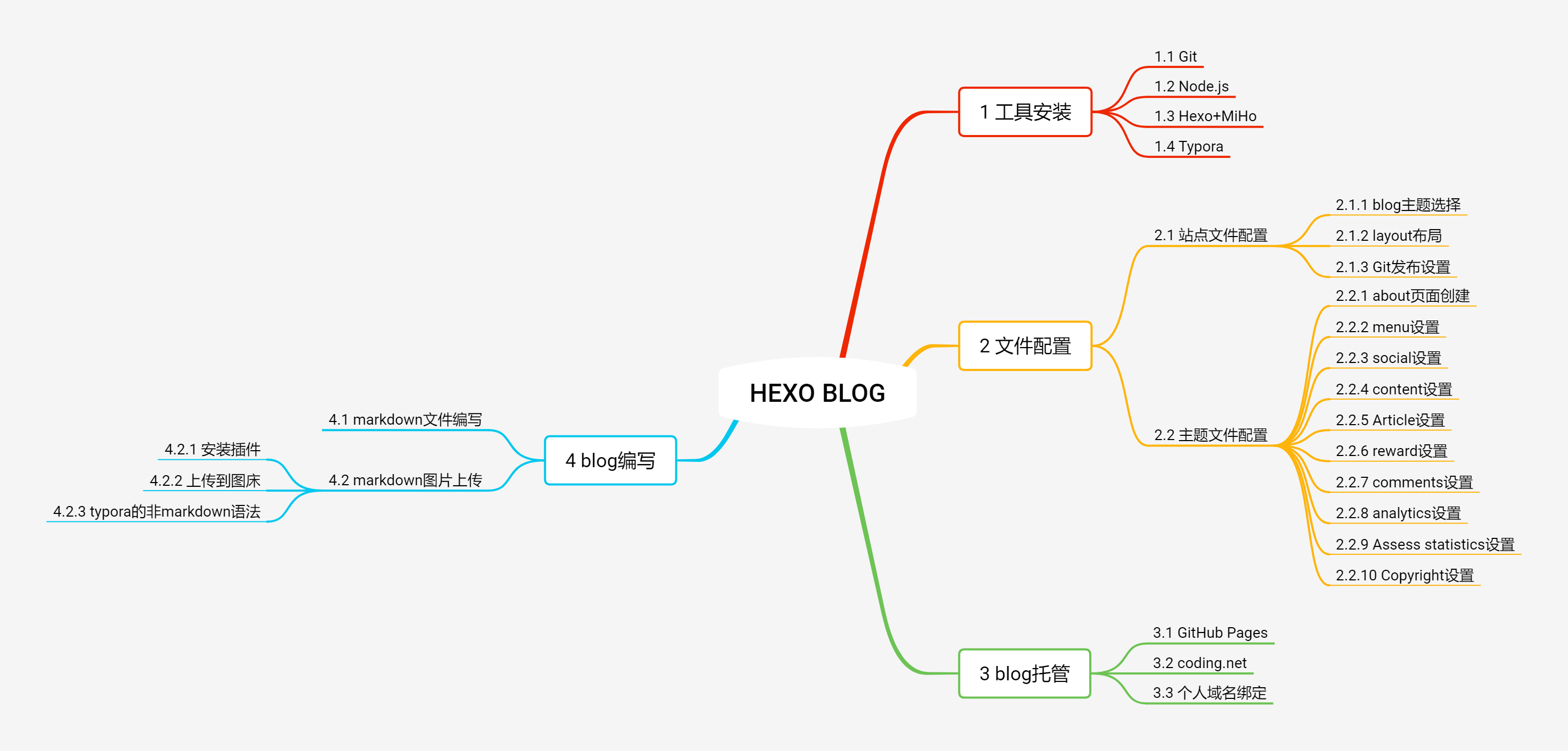
最近看了一篇blog自建博客系列(一)在Windows平台下进行博客平台搭建GitHubPages+Hexo搭建免费个人博客(windows平台),因此,我也尝试着按照作者的思路,建立个人blog。首先来张思维导图:

Hexo-Blog

1.1 在GitHub Pages上建立blog

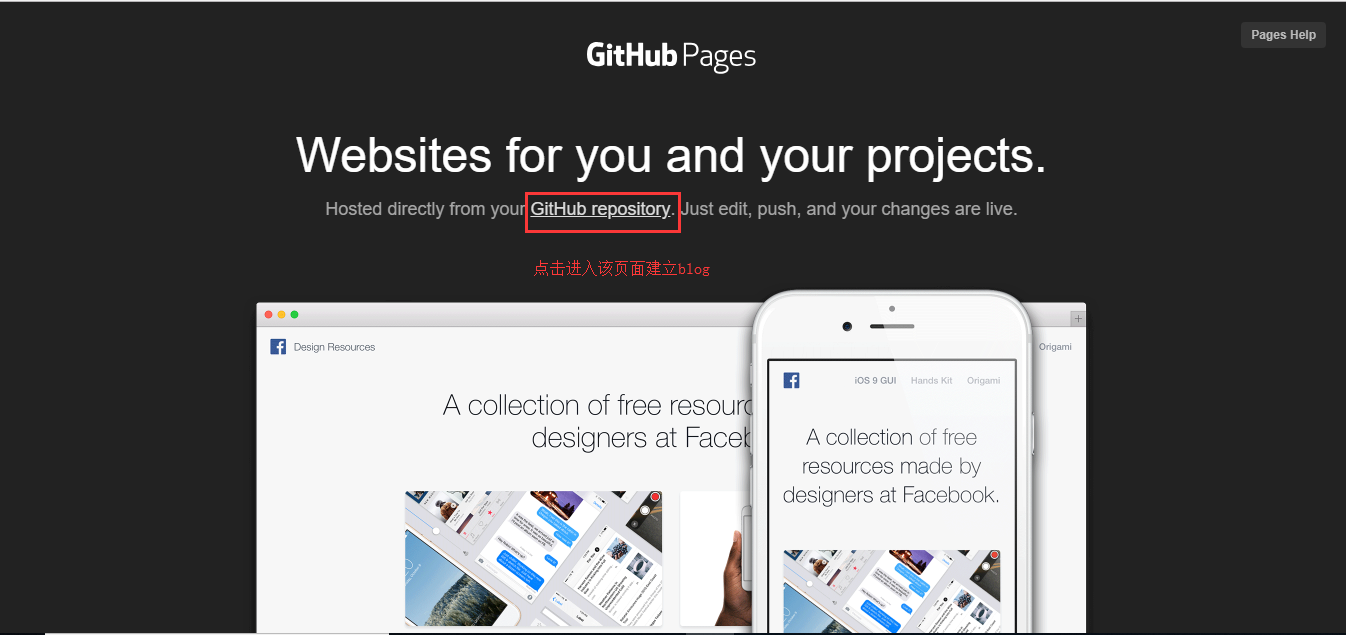
首先打开GitHub Pages上建立一个自己的专属blog:

1536490008993

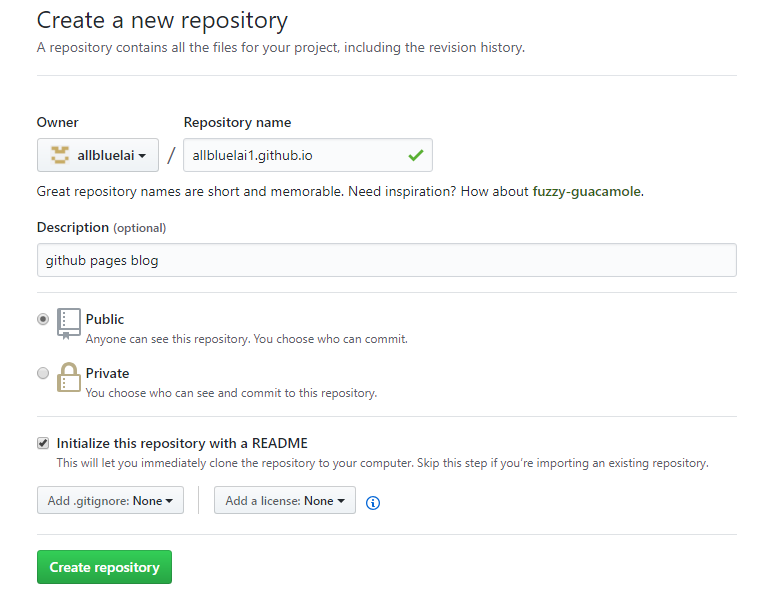
1536492144002

blog的域名为username.github.io,这里的username替换为你自己的名字即可,可以随便取。

1.2 下载Git

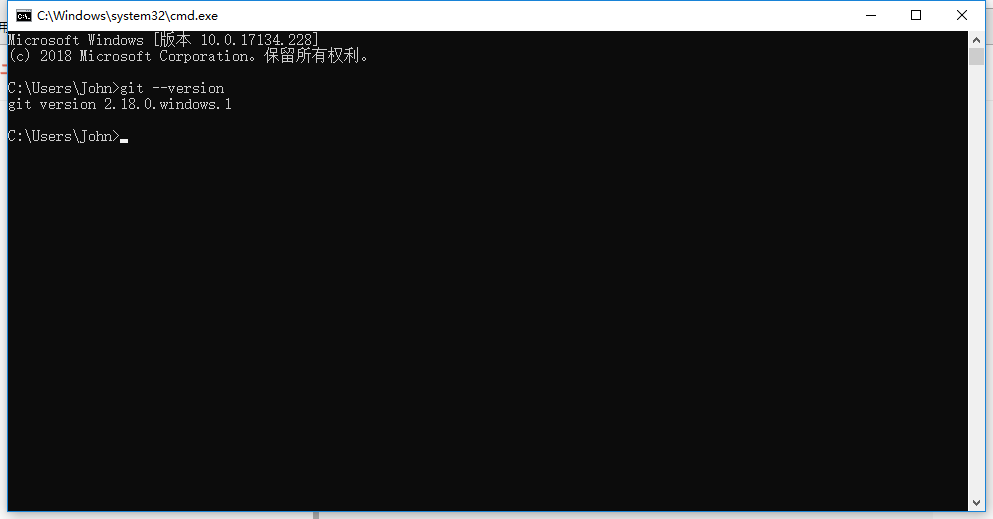
最新的Git下载地址,我当时下载的是Git-2.18.0-64-bit.exe,有需要的可以自行下载;安装过程中,每个步骤的含义可以参考Git 中文详细安装教程,安装结果如下:

1
>git --version

1536331603564

1.3 安装Node.js

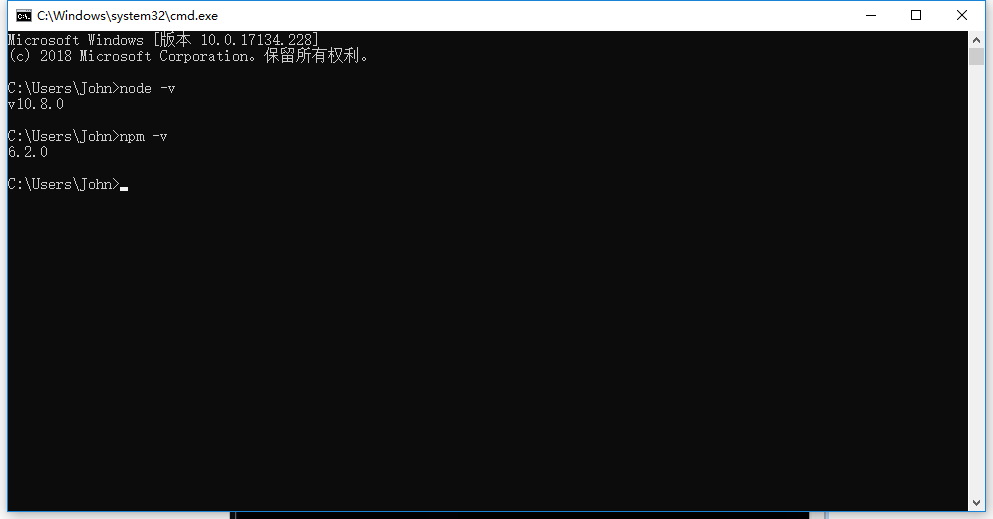
当时我下载的版本是node-v10.8.0-x64.msi,安装结果如下:

1
2
>node -v
>npm -v

1536332022384

1.4 安装Hexo

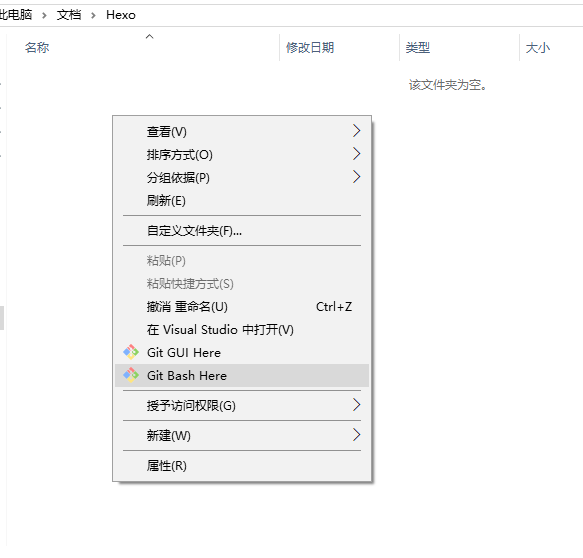
Git 和 Node.js 都安装好后,首先创建一个用于存放博客文件的文件夹(比如取名 Hexo,后来替换为allbluelai.github.io,这里提前说明一下),然后进入 Hexo 文件夹,下面开始安装并使用 Hexo。右键选择Git Bash Here,弹出Git Bash窗口:

1536332185294

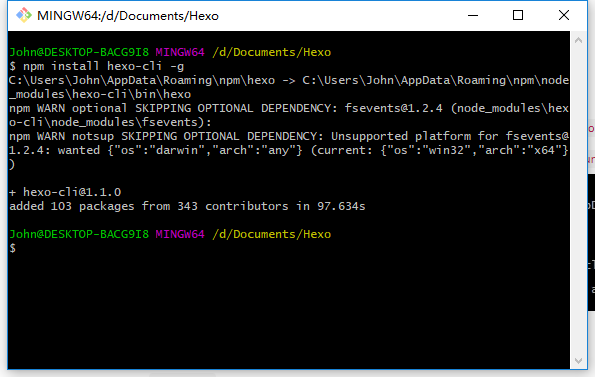
执行命令:npm install hexo-cli -g

1536332463084

注意把Hexo文件夹替换为allbluelai.github.io文件夹

如果遇到问题可以参考以下文章解决:

搭建Hexo博客中碰到的坑

hexo搭建个人博客–NexT主题优化

Hexo 博客从搭建部署到SEO优化等详细教程

1.5 初始化Hexo文件夹

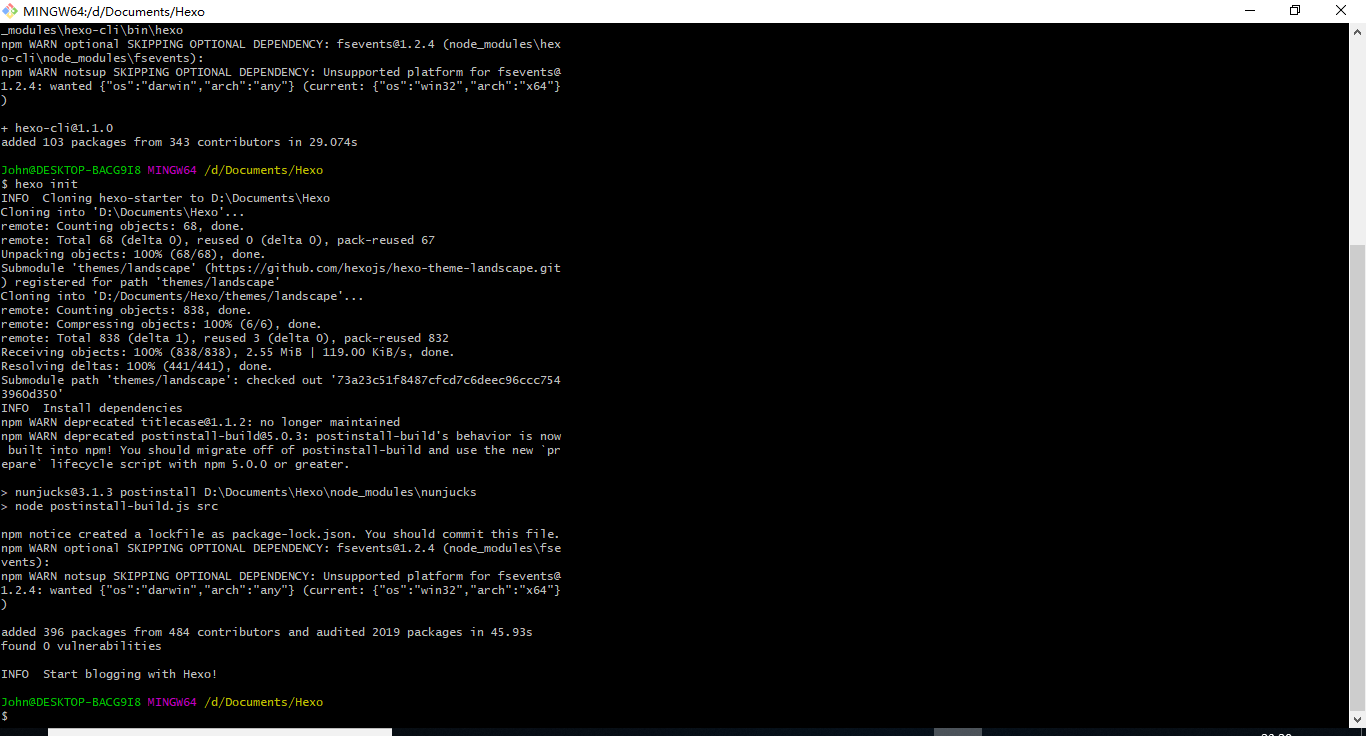
  • hexo init

1536333630264

注意把Hexo文件夹替换为allbluelai.github.io文件夹

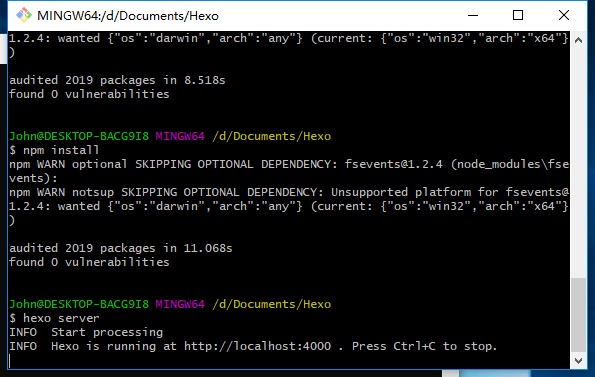
  • 安装依赖和插件,npm install

  • 启动服务器进行本地预览,hexo server,结果如下:

1536334348229

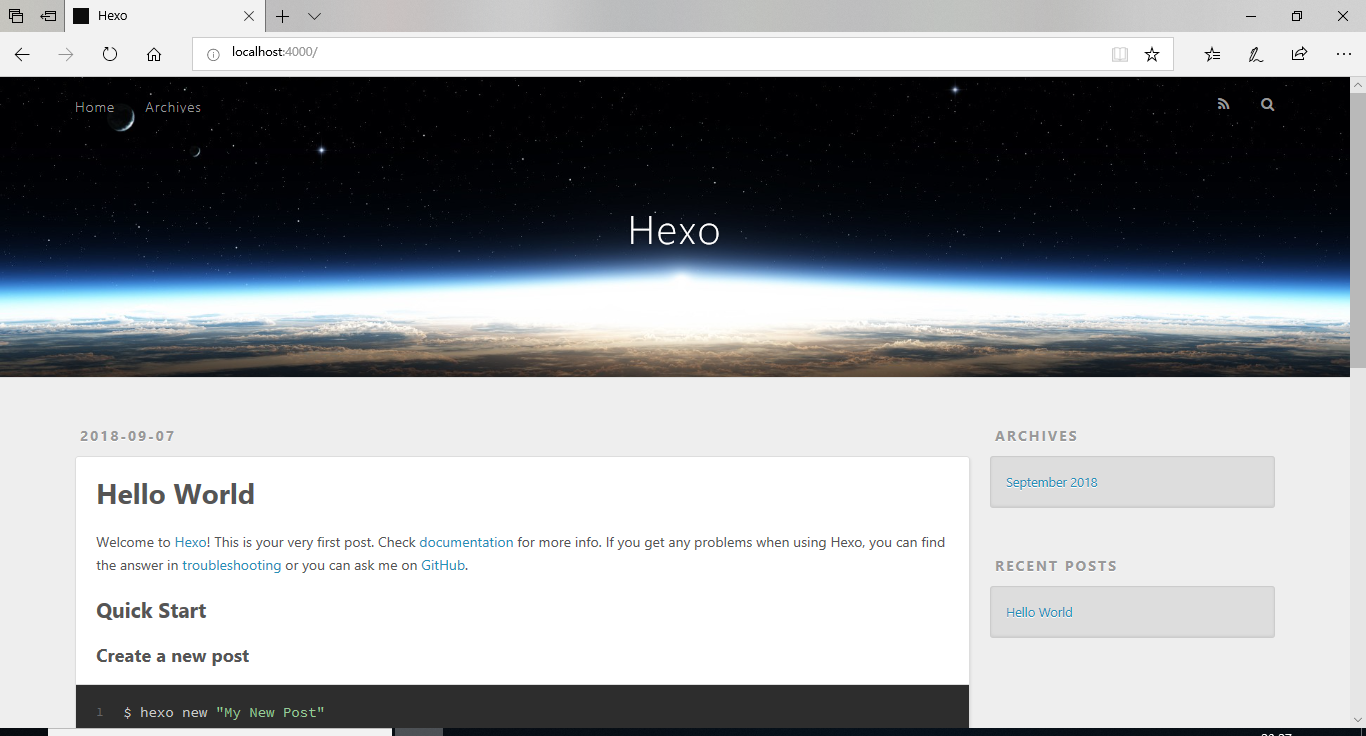
在本地浏览器中打开http://localhost:4000,成功的话即可看到博客页面,至此安装就完成了。

1536334067889

2 Hexo主题

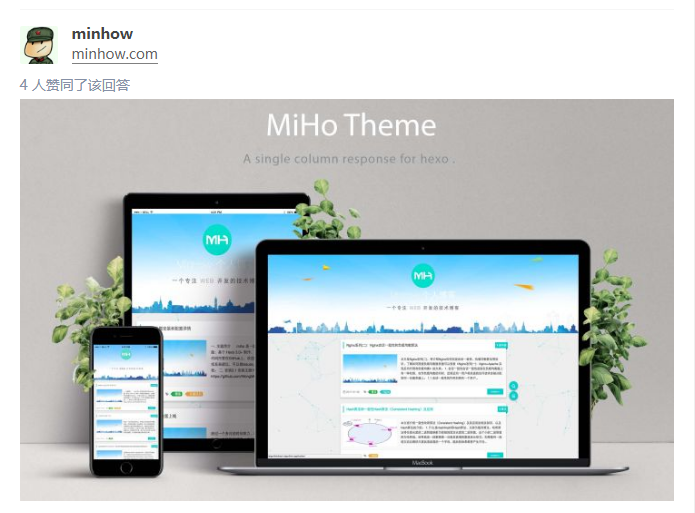
今天,在知乎上看到一个帖子,有哪些好看的 Hexo 主题?,准备给自己的blog找一个好看的主题。然后看到某位知友minhow的主题之后甚是喜欢,因此决定依葫芦画瓢,自己也捣鼓一下。该知友的个人blog

1536422099389

2.1 初始化本地博客

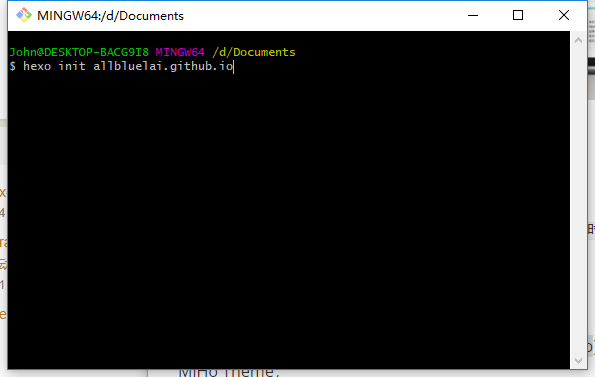
输入创建命令创建并初始化本地博客:

$ hexo init username.github.io // 建议和创建仓库时使用同一个,我的为allbluelai.github.io

1536491578813

因为我已经安装过滤,这里就不再回车了。

2.2 安装MiHo Theme

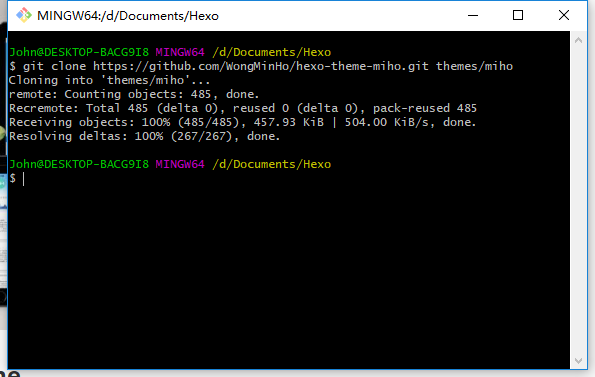
首先进入我的blog主页(D:\Documents\allbluelai.github.io),执行Git Bash Here,然后安装MiHo Theme,此前是在Hexo下做的测试,这里把Hexo文件夹替换为allbluelai.github.io文件夹即可。

1536422722854

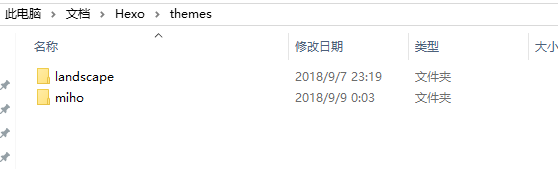
此时,在我的themes文件夹下有miho文件夹:

1536422788147

注意把Hexo文件夹替换为allbluelai.github.io文件夹

接下来按照知友minhow的介绍MiHo-主题安装和配置详情,一步步操作。

2.3 站点配置

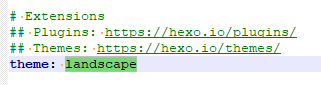
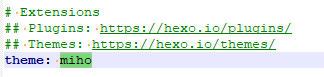
站点配置文件_config.yml在hexo根目录(D:\Documents\allbluelai.github.io)下。把theme的默认值landscape改为miho。

15364231177371536423228651

我的站点配置文件_config.yml内容如下:

1
2
3
4
5
6
7
8
9
10
11
12
13
14
15
16
17
18
19
20
21
22
23
24
25
26
27
28
29
30
31
32
33
34
35
36
37
38
39
40
41
42
43
44
45
46
47
48
49
50
51
52
53
54
55
56
57
58
59
60
61
62
63
64
65
66
67
68
69
70
71
72
73
74
75
76
77
78
79
80
81
82
83
84
85
86
87
88
89
90
91
92
93
94
95
96
97
# Hexo Configuration
## Docs: https://hexo.io/docs/configuration.html
## Source: https://github.com/hexojs/hexo/

# Site
title: haffner2010's Blog
subtitle: 网站副标题
description: 网站描述
keywords: nothing
author: haffner2010
language: zh-CN # 语言 简体中文
timezone: # 用默认的即可

# URL
# 这项暂时不需要配置,绑定域名后,要创建 sitemap.xml 时再配置该项
## If your site is put in a subdirectory, set url as 'http://yoursite.com/child' and root as '/child/'
url: https://allbluelai.github.io # 修改为个人的GitHub Pages地址
root: /
permalink: :year/:month/:day/:title/
permalink_defaults:

# Directory
# 目录,不要修改
source_dir: source
public_dir: public
tag_dir: tags
archive_dir: archives
category_dir: categories
code_dir: downloads/code
i18n_dir: :lang
skip_render:

# Writing
# 文章布局、写作格式的定义,不修改
new_post_name: :title.md # File name of new posts
default_layout: post
titlecase: false # Transform title into titlecase
external_link: true # Open external links in new tab
filename_case: 0
render_drafts: false
post_asset_folder: true
relative_link: false
future: true
highlight:
enable: true
line_number: true
auto_detect: true
tab_replace:

# Home page setting
# path: Root path for your blogs index page. (default = '')
# per_page: Posts displayed per page. (0 = disable pagination)
# order_by: Posts order. (Order by date descending by default)
index_generator:
path: ''
per_page: 10
order_by: -date

# Category & Tag
default_category: uncategorized
category_map:
tag_map:

# Date / Time format
# 日期 / 时间 格式,不要修改
## Hexo uses Moment.js to parse and display date
## You can customize the date format as defined in
## http://momentjs.com/docs/#/displaying/format/
date_format: YYYY-MM-DD
time_format: HH:mm:ss

# Pagination
# 每页显示文章数,可以自定义
## Set per_page to 0 to disable pagination
per_page: 10
pagination_dir: page

# Extensions
# 配置站点所用主题和插件,这里将默认主题注释,修改为 miho
## Plugins: https://hexo.io/plugins/
## Themes: https://hexo.io/themes/
theme: miho
# theme: landscape # 默认值

# Deployment
## Docs: https://hexo.io/docs/deployment.html
deploy:
type: git
repository:
github: git@github.com:allbluelai/allbluelai.github.io.git
gitee: git@gitee.com:allbluelai/allbluelai.git
branch: master


# 头像
# 注意:是 xxx.github.io/source 下的开始的相对路径,如果 source 文件夹下面没有 images 文件夹,那么新建一个。考虑到会博客中用很多图片,在 images 文件夹下请分好类,避免混乱
avatar: /images/avatar.jpg

这里有个地方需要说明一下,我的GitHub Pages,地址会在最下方的copyright那里显示出来,为了能够显示为URL的形式,这里需要修改一下\themes\miho\layout\_partial下的footer.ejs文件,我修改之后的文件内容为:

1
2
3
4
5
6
7
8
9
10
11
12
<footer id="footer">
<div class="outer">
<div id="footer-info" class="inner">
<%- partial('plugins/sites/visit') %>
<p>
Powered by <a href="https://hexo.io/" target="_blank">Hexo</a>
Theme <a href="https://github.com/wongminho/hexo-theme-miho" target="_blank">MiHo</a>
&copy; <%= date(new Date(), 'YYYY') %> <a href=<%=config.url%> target="_blank"><%= config.author || config.title %></a>
</p>
</div>
</div>
</footer>

即在原来的基础上把<%= config.author || config.title %>改为<a href=<%=config.url%> target="_blank"><%= config.author || config.title %></a>即可。

2.4 主题配置

编辑主题配置文件,themes/miho/_config.yml

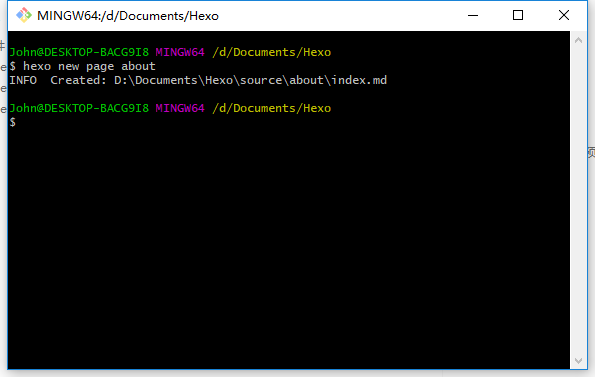
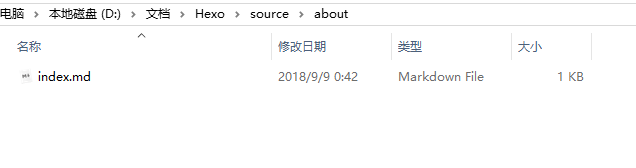
about页面的创建:

15364249957881536425018780

注意把Hexo文件夹替换为allbluelai.github.io文件夹

我的主题配置文件内容如下:

1
2
3
4
5
6
7
8
9
10
11
12
13
14
15
16
17
18
19
20
21
22
23
24
25
26
27
28
29
30
31
32
33
34
35
36
37
38
39
40
41
42
43
44
45
46
47
48
49
50
51
52
53
54
55
56
57
58
59
60
61
62
63
64
65
66
67
68
69
70
71
72
73
74
75
76
77
78
79
80
81
82
83
84
85
86
87
88
89
90
91
92
93
94
95
96
97
98
99
100
101
102
103
104
105
106
107
108
109
110
111
112
113
114
115
116
117
118
119
120
121
122
123
124
125
126
127
128
129
130
131
132
133
134
135
136
137
138
139
140
141
142
143
144
145
146
147
148
149
150
# hexo-theme-miho
# https://github.com/wongminho/hexo-theme-miho

# Favicon of your site | 网站icon
favicon: /favicon.ico

# Header

# Keywords of your site | 网站关键字
keywords: My Hexo Blog
# Head headline | 头部标题
header_title: haffner2010's Blog
# Head description | 头部描述
header_description: A Boy from SCNU
# Link to your logo | logo地址
logo: images/logo.png
# Link to your banner_img | 首页banner图地址
banner_img: images/banner.jpg
# Menu setting | 菜单设置
# name: Font Awesome icon | Font Awesome 图标
# title: Home Title | 标题
# url: //minhow.com Url, absolute or relative path | 链接,绝对或相对路径
# target: true Whether to jump out | 是否跳出
menu:
home:
title: Home
url: /
target: false
archive:
title: Archives
url: /archives
target: false
user:
title: About
url: /about
target: false
# Social setting, use to display social information | 社交设置,用来展示社交信息
# name: Font Awesome icon | Font Awesome 图标
# title: Home Icon title | 图标标题
# url: //minhow.com Url, absolute or relative path | 链接,绝对或相对路径
# target: true Whether to jump out | 是否跳出
social:
home:
title: haffner2010
url: //allbluelai.github.io
target: true
github:
title: Github
url: //github.com/allbluelai
target: true
book:
title: Jianshu
url: https://www.jianshu.com/u/e031670b216b
target: true
envelope-o:
title: Email
url: mailto://myprojtest@163.com
target: true
#weibo:
# title: Weibo
# url:
# target: true
#twitter:
# title: Twitter
# url: //twitter.com/huangminhow
# target: true
#qq:
#weixin:
#snapchat:
#telegram:
#envelope-o:
#facebook:
#google:
#linkedin:

# Content

# Excerpt length | 摘录长度
excerpt_length: 190
# Excerpt link | 摘录链接
excerpt_link: more>>
# New window open link | 新窗口打开文章
open_new_link: true
# Article default cover picture,size:350*150 | 文章默认封面图,尺寸:350*150
cover_picture: images/banner.jpg
# Open background particles | 开启背景粒子
open_bg_particle: true
# Open animation in homepage and head | 开启主页及头部动画
open_animation: true

# Article

# Open toc | 是否开启toc
toc: true
# Open share | 是否开启分享
share: true

# Style customization | 样式定制
style:
# Main color tone | 主色调
main_color: '#0cc'

# Reward | 打赏

reward:
# 0-close, 1-All articles are rewarding, 2-Article's md file has reward:true attribute, only reward
# 0-关闭, 1-所有文章均有打赏, 2-文章的md文件里有reward:true属性,才有打赏
status: 2
# 标题
title: 请我吃糖~
# 微信,关闭设为 false
wechat: images/wechat_code.jpg
# 支付宝,关闭设为 false
alipay: images/alipay_code.jpg

# Comments | 评论

# 畅言,输入appid和appkey
changyan_appid: false
changyan_appkey: false
# 友言,输入id
youyan_id: false
# disqus
disqus: false
# gitment https://github.com/imsun/gitment
gitment: # 如果开启,需要填写以下内容
# 以下内容替换单引号内的内容即可,单引号需要保留
# owner: 'GitHub用户名'
# repo: '用于存放评论的repo或者复用GitHub Pages'
# client_id: 'client_id'
# client_secret: 'client_secret'

# Analytics | 分析
# 站长分析,输入站点id
cnzz_analytics: false
# 百度分析,输入key值
baidu_analytics: false
# google analytics | google分析
google_analytics: false

# Footer

# Access statistics | “不蒜子”访问量统计
access_counter:
on: true
site_uv: 总访客数:
site_pv: 总访问量:

# Copyright Information | 版权信息
copyright: 2018 haffner2010

前面两行是原作者的GitHub主页,也是本主题的项目文件,有兴趣的可以自行下载。

2.5 MarkDown写博客文章注意

写your_title.md格式的博客文章,需要在文章头加类似如下设置,MiHo主题才会自动对文章进行分类:

1
2
3
4
5
6
7
8
9
10
11
12
---
title: xxx # 文章标题
categories:
- Android # 一级分类
- Android Studio # 二级分类
tags:
- Android
- Android Studio
comments: true #开启评论
date: 2018-09-09
---
开始吧啦吧啦...

2.6 本地运行预览服务,查看效果

git bash定位到allbluelai.github.io文件夹根目录,输入以下命令启动本地预览服务器:

$ hexo s

在浏览器中输入http://localhost:4000/,查看效果。

2.7 生成博客并部署到远程GitHubPage上

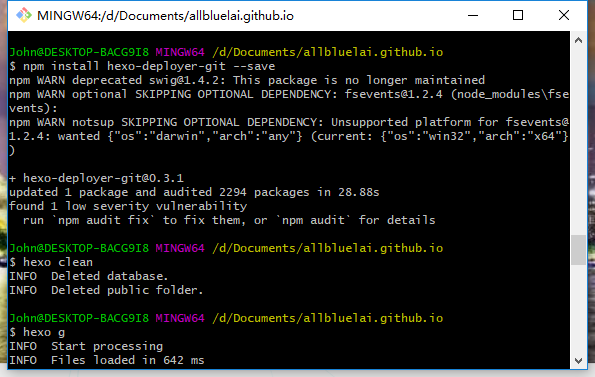
安装hexo自动部署工具

使用如下命令进行安装,

$ npm install hexo-deployer-git --save

发布到GitHubPages

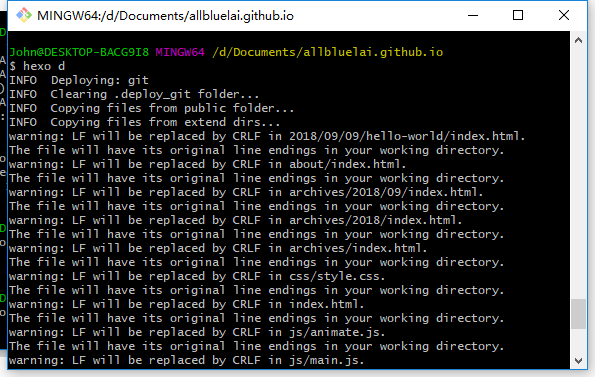
  • 方法一:依次执行如下命令来发布博客:

    1
    2
    3
    $ hexo clean #清除缓存 网页正常情况下可以忽略此条命令
    $ hexo g #生成静态网页
    $ hexo d #开始部署
  • 方法二:也可一行命令完成发布:

    $ hexo clean && hexo g && hexo d

    1536494442061

    1536494452717

2.8 不同电脑上更新博客问题

我的方法是:将xxx.github.io文件夹内更改的文件备份到github上,在另一台电脑上下载更改的配置文件,按以上步骤配置好本地博客环境,将下载的文件覆盖到xxx.github.io文件夹中即可。

暂未实践,有空再说!

2.9 typora上传图片路径的问题

因为typora等markdown编辑器本地上传的图片在发布blog时,图片不能正常的显示,因此,我参考了Hexo发布博客引用自带图片的方法这篇文章,在本地blog的根目录(D:\Documents\allbluelai.github.io)安装了插件,并新建了一个专门保存图片的文件夹。

2.10 添加评论

可以使用gitment或者gitalk二者都是基于GitHub的,或者MiHo集成的第三方评论,当然MiHo已经集成了gitment,只要配置壕参数即可,但gitment容易泄露个人配置的client_id和client_secret等信息哈~,为此我就不1开启评论了,也不申请第三方评论系统,有需要可以联系我哈

如果gitment的配置有问题,可以参考一下我的配置文件:

1
2
3
4
5
6
7
8
9
10
11
12
13
14
15
<div id="comments"></div>
<link rel="stylesheet" href="https://imsun.github.io/gitment/style/default.css">
<script src="https://imsun.github.io/gitment/dist/gitment.browser.js"></script>
<script>
var gitment = new Gitment({
id: decodeURI(window.location.pathname),
owner: '<%- theme.gitment.owner %>',
repo: '<%- theme.gitment.repo %>',
oauth: {
client_id: '<%- theme.gitment.client_id %>',
client_secret: '<%- theme.gitment.client_secret %>',
},
})
gitment.render('comments')
</script>

该文件的路径为\themes\miho\layout\_partial\plugins\comments\gitment.ejs

第一篇blog

其实就是本篇blog啦~~~

最后更新: 2021年04月18日 22:35

原始链接: https://allbluelai.github.io/2018/09/09/installation-configuration/

× 请我吃糖~
打赏二维码